
One of the most fascinating moments in the April 16 release of Codex computer use was this: there were two mouse cursors on screen at the same time — one controlled by the user, and another floating cursor controlled by the AI agent. The agent could click windows and type in the background without interrupting whatever the user was doing on their computer.
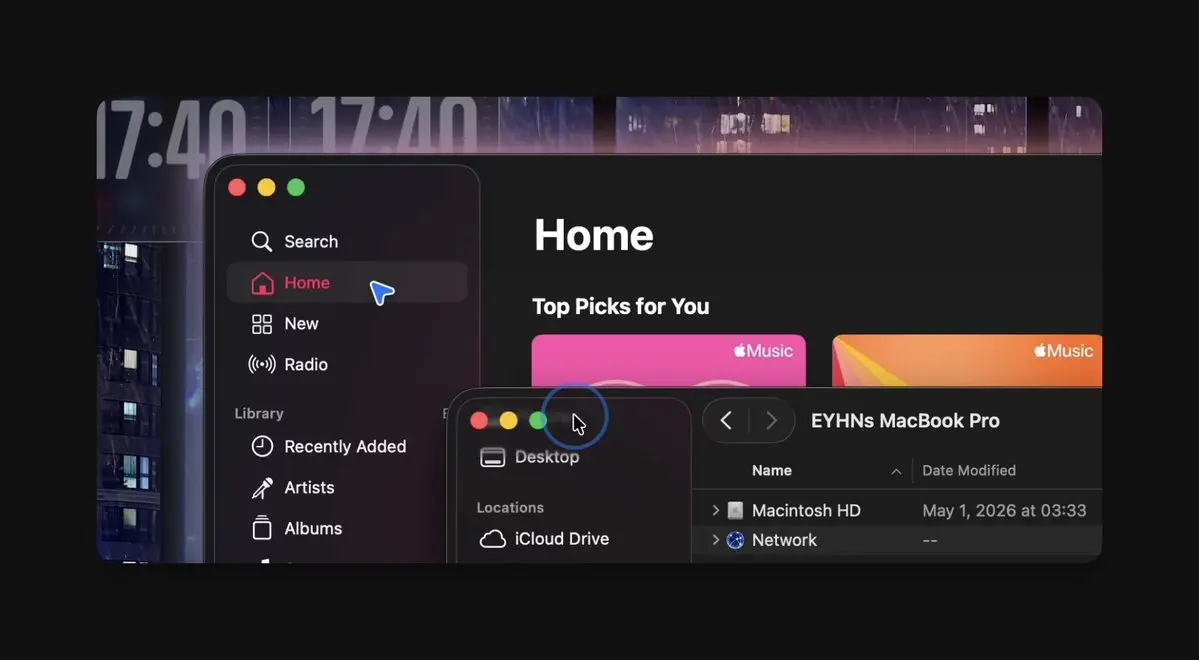
Two cursors existing at the same time.
But that floating cursor is really just visual theater — technically, there is no need to actually render a second cursor at all. What really matters is how background clicks are made to work. This article breaks down the underlying mechanisms: from the basic capabilities of the Accessibility API, to directly dispatching events into background windows using CGEvent, and finally the most critical step — “tricking” macOS’s window system into letting a background window enter an activated state.
Before diving into the details, I also want to mention a very important reference: Cua Driver.
That article came out very early — roughly one week after Codex computer use launched — and initially reproduced a Codex-like background computer use system. But over the past month I have gathered more information and also discovered several inaccuracies in that article. Some key implementation details were omitted — for example, they relied heavily on private APIs from SkyLight.framework, while in my testing I found simpler and more stable approaches.
A quick disclaimer first: this approach depends on very low-level behaviors inside the macOS window system, and may even rely on bugs. Many things are still unknown, and some techniques work on certain apps but fail entirely on others.
All related implementations have been open-sourced together with OpenBridge, including the full logic for reading background windows, clicking windows, and keyboard input. The low-level computer-use implementation lives in KWWK Computer Use Core, which OpenBridge depends on.
If you want to actually try an agent powered by this computer use stack, you can join Bridge’s waiting list at bridge.surf.
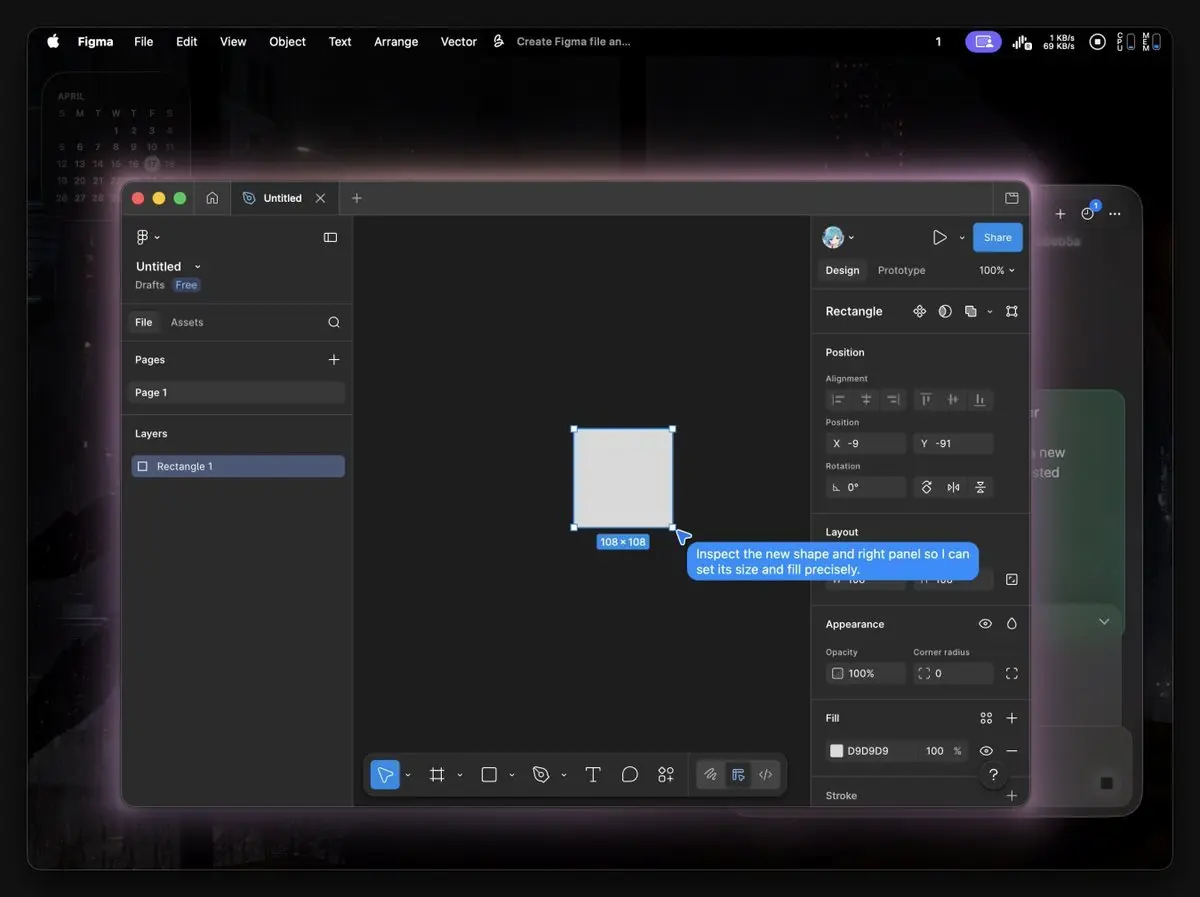
Computer Use in Bridge.
Accessibility first
When people think about computer use, their first instinct is usually simulating mouse and keyboard input: bring the target window to the foreground, then click into it. But macOS actually ships with the Accessibility API, usually called AX. Once granted permission, it can directly read the UI of any app and even interact with certain controls — entirely in the background, without requiring the target app to be frontmost or even moving the real system cursor.
What it can specifically do:
- Read: enumerate windows, traverse the AX tree, retrieve properties like role, title, frame, and value.
- Write: native AppKit controls can directly invoke actions — buttons through AXPress, text fields through setValue, and scrollbars through AXIncrement / AXDecrement.
These actions are handled internally by the app itself, so the window does not need to become the key window, and the cursor never needs to move there. For native apps like TextEdit, Finder, and System Settings, an agent can often complete an entire task chain simply by reading the AX tree, finding the corresponding element, and invoking its action.
But AX does not cover every scenario:
- In Chrome and Electron apps running in the background, the AX tree is often incomplete, and AXPress is unreliable, so you need to fall back to simulated mouse input.
- Character-by-character keyboard input still relies on sending key events through postToPid.
These are the window-system techniques discussed later. For native apps, Accessibility is the primary mechanism; the later “magic” mainly fills the gaps AX cannot handle.
Dispatching events with postToPid
When AX is not enough, the next step is directly using CGEvent to send mouse and keyboard events into the target window. The core API is postToPid — instead of going through the global HID channel, it dispatches events directly into the specified process’s event queue.
The SLEventPostToPid mentioned in the Cua Driver article is actually not the important part. In practice, CGEvent.postToPid is already completely sufficient.
The rough steps are:
- Obtain the target pid, windowNumber, and control coordinates.
- Construct mouse/keyboard events, filling in eventTargetUnixProcessID and window-related fields so the system knows which window the event should be delivered to.
- Call postToPid to dispatch the event; a single click consists of two events: down + up.
A single left click is ultimately composed of two events:
leftMouseDown:
  location = screenPoint
  button = left
  clickState = 1
  pressure = 1
  targetPID = pid
  windowUnderMouse = windowNumber
  windowThatCanHandle = windowNumber
  private field 51 = windowNumber
  private field 58 = 1
  CGEventSetWindowLocation = quartz window-local point
  postToPid(pid)

30ms delay

leftMouseUp:
  same target/window/location fields
  pressure = 0
  postToPid(pid)
See BackgroundInputDispatcher.swift and BackgroundWindowLocalEvent.swift for the concrete implementation.
postToPid can deliver events to background windows, but before many apps process a click, they first check whether their window is “alive” — whether it is the key window, the main window, and whether focus currently belongs to it. Background windows do not satisfy these conditions by default, so the event may simply get discarded.
Chrome and Electron have an additional issue: when the window is not frontmost, they often do not expose the full AX tree, so the agent cannot even determine what to click.
So we need to trick them a little: make the target window enter an “activated” state internally within the process, without actually bringing it visually to the front of the screen. The app the user is actively using must still remain frontmost.
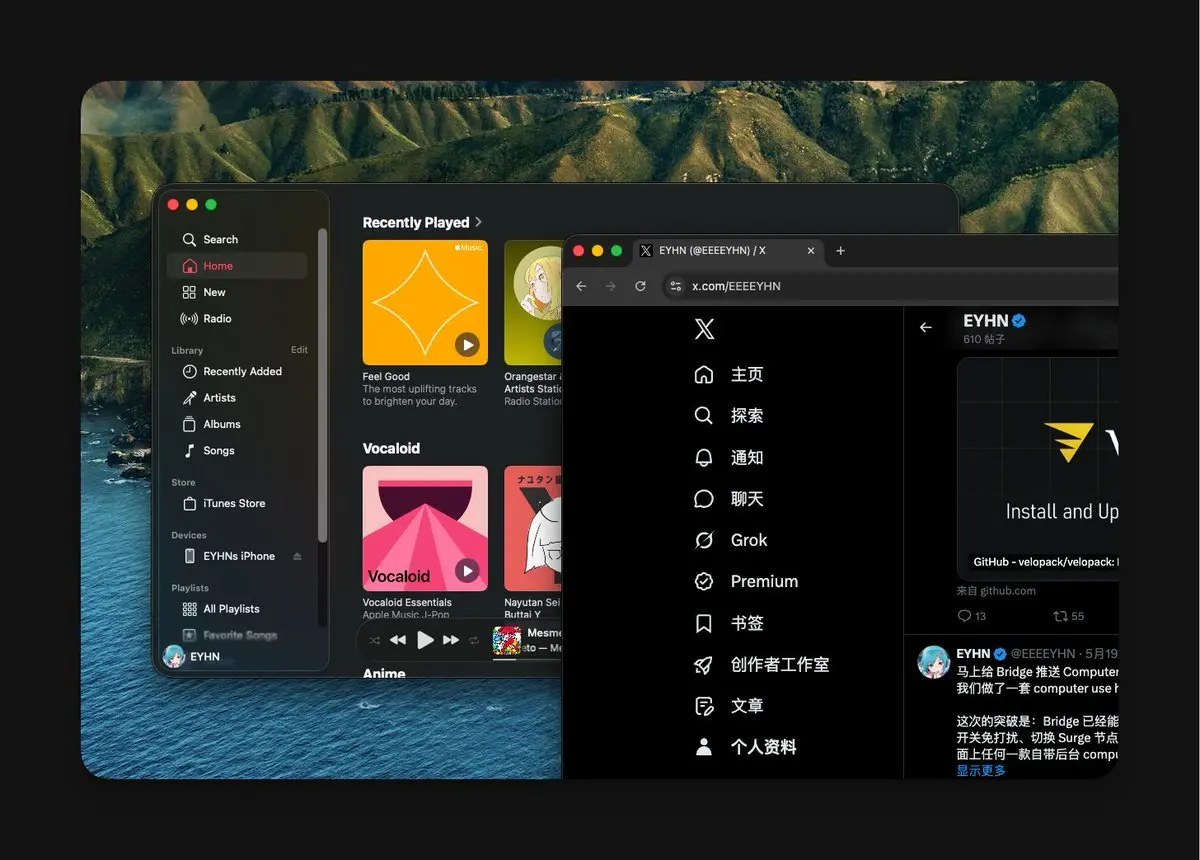
Apple Music window activated in the background.
In the screenshot, the traffic-light buttons in the top-left corner of both the Apple Music and Chrome windows are illuminated, meaning both apps believe they are active. Normally, background windows display dimmed traffic lights — which shows that we successfully fooled Apple Music into entering an activated state while still running in the background.
Background activation without stealing focus
Activation is basically just “clicking the window.”
The approach is surprisingly straightforward: send a single postToPid click into the target window — the “center primer.” Once the app receives a legitimate mouse down/up sequence, it internally goes through the normal window activation flow. The window becomes the key window, starts accepting input, and Chrome/Electron will also expose their AX tree at this point. Functionally, this is no different from a real user clicking the window.
The difference comes after the click. Under normal circumstances, this would cause macOS to bring the target app to the front of the screen, while the app the user is currently using receives a deactivation event. What we want is only the first half — the internal activation inside the process — without the second half: the visual frontmost app switch.
The click is sent to the exact center of the window, so it will not trigger any actual app behavior — only window activation.
This takes advantage of a macOS behavior: when an inactive window receives its first click, it usually will not trigger the actual UI action immediately, and will instead go through the activation flow first. The click location can technically be anywhere, but avoid the top-left corner — the traffic-light buttons still respond even when the window is inactive, which could accidentally close or minimize the app.
How to intercept focus messages
After an app receives the click, it will send a deactivation event to the current frontmost app and an activation event to the target app — causing the foreground app to switch. The solution is to install event taps on the relevant processes and intercept the focus messages before they are delivered into the apps. So the order matters: install the taps first, then send the activation click.
The implementation uses CGEvent.tapCreateForPid — attaching a per-process event tap to a specific pid, inserting it at the head of the process event queue so events go through the callback before the app sees them. This is different from a global HID tap. In the codebase, this entire logic is encapsulated inside BackgroundActivationSession.
BackgroundActivationSession.start installs two taps:
- previous: the pid of the current frontmost app — the one the user is actively using.
- target: the pid of the background app the agent wants to operate on.
During registration, CGEventMask.max is used to listen to all event types, and then narrow filtering is performed inside the callback. Focus messages do not have stable public CGEventType values — the names may differ across macOS versions, so the only reliable way is identifying them by raw values: 13, 19, and 20.
The rule is very simple: if a focus message is headed to the previous app, drop it; allow the target app’s activation to pass through.
backgroundActivationEventTapCallback:
  if isFocusMessage(type) && destined for previous app:
    return nil          // suppress deactivation
  return event          // allow target activation
Once the taps are installed, the actual activation happens in two steps.
Step 1: appKitDefined primer
First, send an NSEvent.otherEvent to the target pid: type = appKitDefined, subtype = 1. According to Apple’s public headers, subtype 1 corresponds to applicationActivated, which is an internal AppKit app activation event.
This event has several key details:
- It is delivered directly into the target process’s event queue through postToPid, bypassing WindowServer’s normal frontmost routing.
- The event carries the windowNumber, and writes field 51/58 through setWindowAddressingFields, allowing AppKit to know which window the event is associated with.
- Functionally, it is equivalent to telling the target app ahead of time: “you should enter the activated state now,” preparing the way for the later center primer.
At the end, subtype 2, applicationDeactivated, is sent to return the target app back to the background state. Apple does not publicly document the exact handler path — this is an internal mechanism validated through real-world testing.
Step 2: center primer
Then send another postToPid click to the center of the window — this is the “click the window once” mentioned earlier.
A complete operation
- Create BackgroundActivationSession, installing the event taps first.
- activateWindow: appKitDefined primer + center primer.
- Execute the real click / type / scroll operations.
- Keep the taps running until the session ends, preventing later operations from stealing focus again.
If the target app is already frontmost, or has already been activated by us, there is no need to go through the activation flow again. For this, I also implemented FrontmostApplicationMonitor to monitor frontmost app transitions — whether the user switches windows manually or the agent operates in the background, the state always stays synchronized.
The concrete logic can be found in BackgroundActivationSession.swift and FrontmostApplicationMonitor.swift.
In the Cua Driver article, they used private SkyLight APIs to implement background activation, but in my testing it was not stable. This combination of appKitDefined primer + center primer has been extremely reliable in my experience, and has worked across every app I tested.
Through the steps above, we successfully trick the window into believing it has been activated, allowing clicks, typing, and other interactions to work entirely in the background.